Select. Format.
Keep writing.
Headings, lists, links, and the rest. Add Markdown from the right-click menu or a picker that looks like your editor.
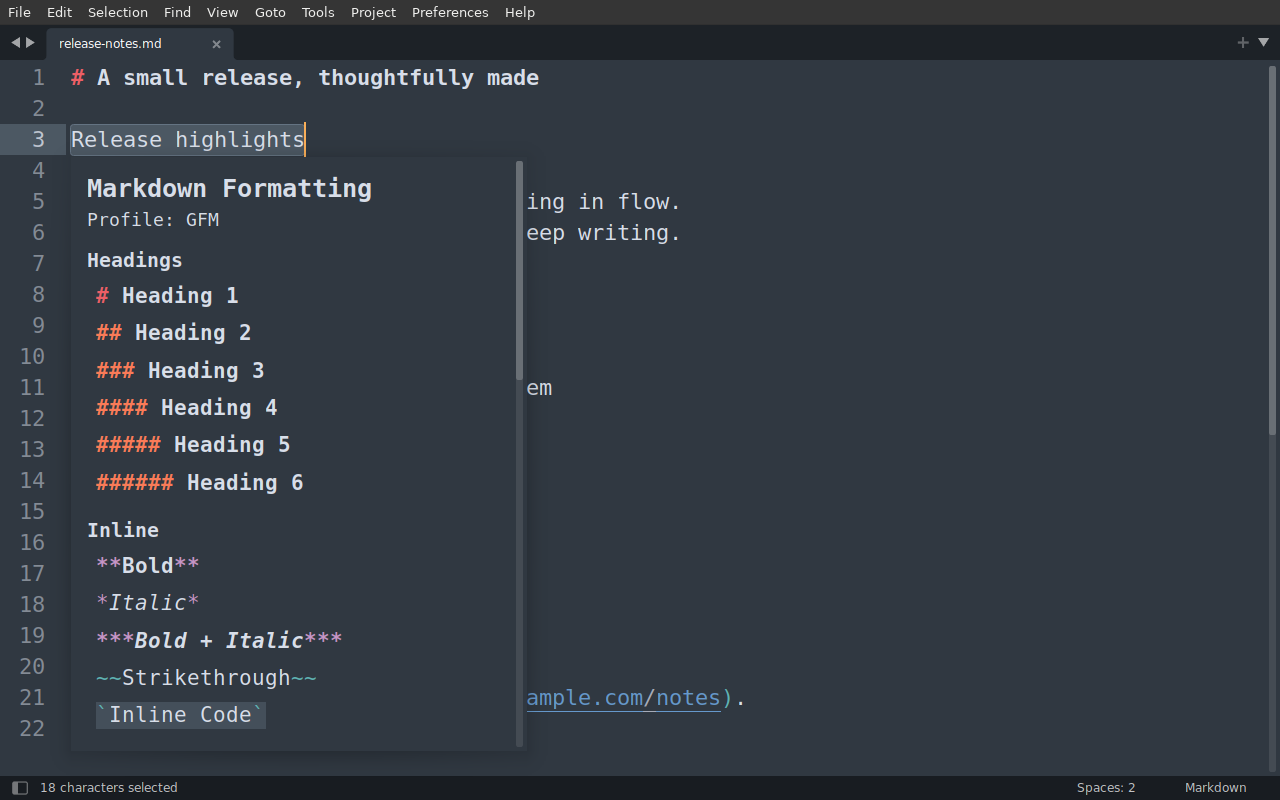
Less syntax to remember.
Select the text you want to change, then choose a format. The package edits the Markdown source, keeping you in the document.
A useful idea
**A useful idea**Interactive examples of the package’s output. Formatting runs in Sublime Text; this page is a demonstration.
- 01
Select your text
Open a Markdown document. Select a word, a few lines, or several separate selections.
- 02
Choose a format
Right-click → Markdown Formatting. Pick an action, or open Styled Picker… to see the syntax.
- 03
Carry on writing
The source is updated in place. Use the editor’s Undo as usual, or repeat your last format.
Prefer the keyboard? Open the Command Palette and run Markdown Formatting: Search Formats or Markdown Formatting: Styled Picker. No default keybindings are added.
The Markdown
you actually use.
Choose a profile, hide the actions you do not need, and keep your favorites near the top of the pickers.
The Styled Picker follows your current color scheme automatically. Native menus keep their normal system appearance.
- Everyday formats
- Headings 1–6, bold, italic, code, links, images, blockquotes, and ordered or unordered lists.
- GFM
Default profile - GitHub Flavored Markdown, with strikethrough, tables, task lists, and checkbox toggling.
- Other profiles
- CommonMark for the core syntax. MultiMarkdown for features including footnotes. The menu reflects the selected profile.
- Review & custom
- CriticMarkup annotations are enabled by default as a separate extension. Add your own literal text wrappers through custom formats.
Settings and a smaller menu
Open Preferences → Package Settings → Markdown Formatting → Settings. Save your overrides in the right-hand pane.
For example, this keeps GFM, hides image/insertion actions, moves three formats to the top of the pickers, and turns off CriticMarkup:
{
  "profile": "gfm",
  "hidden_actions": ["image", "insertion"],
  "picker_order": ["bold", "italic", "heading_2"],
  "enable_critic_markup": false
}picker_order affects the pickers, not the grouping of the native menu. Settings apply on the next command or menu opening.
Custom formats and optional shortcuts
Add a literal wrapper using custom_formats. For example:
{
  "custom_formats": [
    {
      "label": "Highlight (HTML)",
      "prefix": "<mark>",
      "suffix": "</mark>",
      "placeholder": "highlighted text"
    }
  ]
}These are literal strings, not snippets or executable code. Choose formats your Markdown renderer supports.
To add a shortcut, open Preferences → Key Bindings. This is an optional example, not an installed binding:
[
  { "keys": ["ctrl+alt+m"], "command": "md_format_picker", "args": { "mode": "search" } }
]If you already have bindings, add this entry inside the existing array. Choose an unused key combination; use super for the Command key on macOS.
What to expect
Formatting is restricted to Markdown buffers by default. Select Markdown syntax for an untitled document, or set markdown_only to false in package settings.
This is a source-editing helper. It does not render a document or automatically reformat an entire file. Switching profiles does not convert existing Markdown. Review annotations and custom wrappers need support in your chosen renderer.
Empty submenu headings may remain visible on some native platforms when all their actions are hidden. The settings command remains available.
Add it to Sublime.
One small package. Everything it needs is included.
v1.1.2 · 163.9 KiB · Released 12 November 2026
1 download
Download packageTargets Sublime Text build 4215. Python 3.8-compatible source for build 4200 and newer.
Download the package
Keep the filename
MarkdownFormatting.sublime-package. Leave the archive zipped.Find Installed Packages
In Sublime Text, open Preferences → Browse Packages…. Go up one folder, then open Installed Packages. Create that folder if it is missing.
Copy, then restart
Put the downloaded file in Installed Packages and restart Sublime Text. The package is ready to use.
Use Browse Packages on Windows, macOS, Linux, or a portable installation to find the correct location. Do not place the archive in Packages/User.
Updates, removal & Package Control
Update: replace the same archive and restart Sublime Text. Your user settings are preserved. Remove an older unpacked Packages/MarkdownFormatting development copy first, since loose files can override the archive.
Uninstall: remove the archive and restart. You can also remove Packages/User/MarkdownFormatting.sublime-settings if you want to delete its saved settings.
Package Control: this package is not listed in the default channel yet. For automatic updates, run Package Control: Add Repository with https://palamedis.com/sublime-md-format/package-control.json, then Package Control: Install Package and choose MarkdownFormatting. Otherwise use the download above; updates are then manual. This is an installable Sublime package, not a source ZIP.