The path inside
your data.
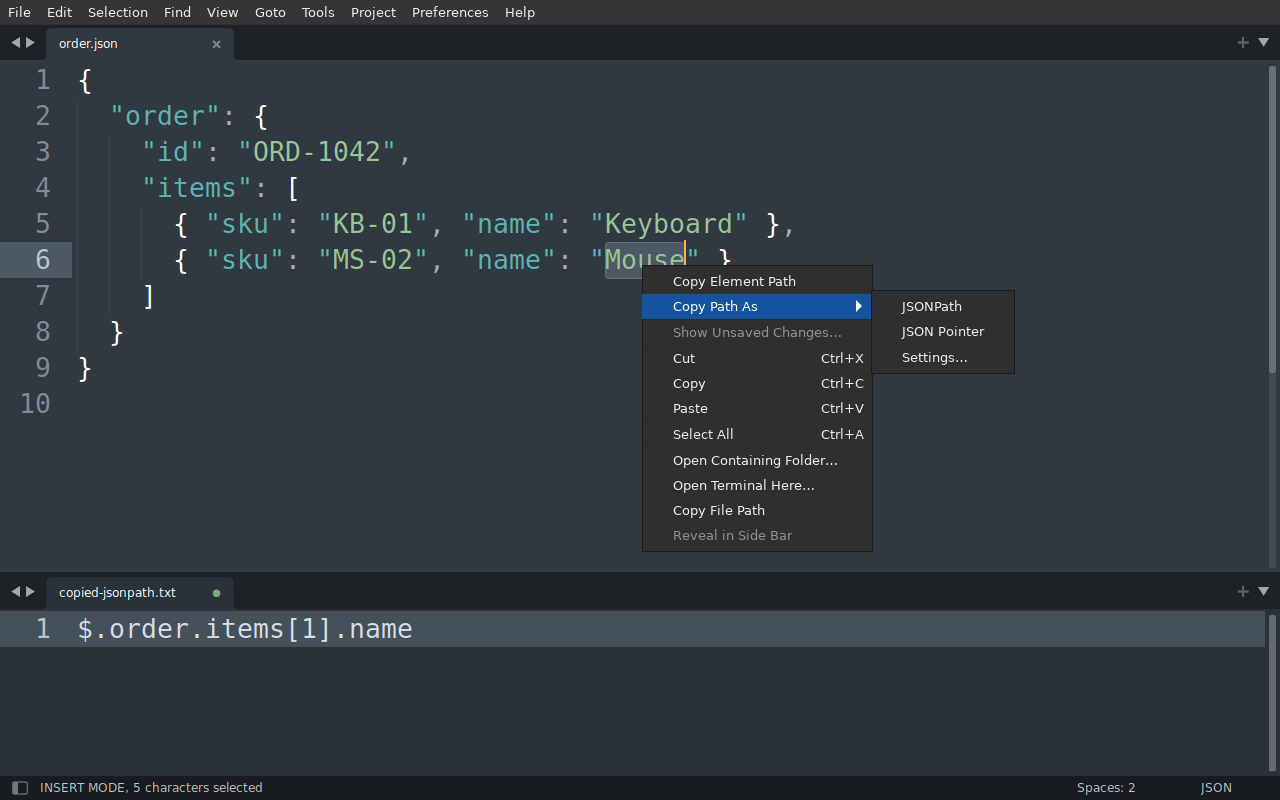
Right-click a key, value, or XML attribute. Copy its JSONPath, JSON Pointer, or XPath straight to your clipboard.
order.json
{ "order": { "id": "ORD-1042", "items": [ { "sku": "KB-01", "name": "Keyboard" }, { "sku": "MS-02", "name": "Mouse" } ] }}Resulting path
$.order.items[1].name
Right where
you are.
Copy a location from the document you are working on, including unsaved changes. The source text and your selections stay as they are.
With the mouse
Right-click directly on the key, value, tag, or attribute. Choose Copy Element Path. The clicked location determines the result.
With the keyboard
Place a caret and open the Command Palette. Run Copy Path: Copy Element Path. With several carets, unique paths are copied one per line. No default keybindings are installed.
From a nested field
to an exact reference.
Use a path in a test, a data mapping, or a bug report. Choose an explicit notation through Copy Path As, or set the default you use most.
Copy Path works with structural locations inside documents. It does not copy file or folder locations.
- JSON & JSONC
- JSONPath by default, or JSON Pointer. JSONC accepts comments and trailing commas. Arrays count from zero.
- YAML
- JSONPath or JSON Pointer for a single document with string-keyed mappings and sequences. Paths describe locations in the source.
- XML
- XPath with attribute preference by default. Choose positional or text preference for a different form. Click an attribute to include its
/@attributestep. - Several carets
- Collect up to 32 paths in one operation. Duplicate paths are removed, with the remaining paths kept in selection order.
Choosing an XML path style
Prefer Attributes uses a suitable attribute that identifies an element among siblings, such as id. Ambiguous steps fall back to positions.
Positional includes a 1-based sibling position at every element step, such as /catalog[1]/product[2].
Prefer Text uses a unique, short, single-line leaf value when possible. Other steps fall back to positions.
Explicit choices in Copy Path As apply once; they do not change your default. For namespaces, generated XPath uses local-name() and namespace-uri(), so no separate prefix map is needed.
Defaults and optional keyboard shortcut
Open Copy Path As → Settings…, or Preferences → Package Settings → Copy Path → Settings. Save overrides in the right-hand pane.
For example, use JSON Pointer by default for JSON and YAML, while keeping attribute-preferred XPath:
{
  "json_path_style": "pointer",
  "xml_path_style": "attributes",
  "show_copy_path_as_submenu": true
}The shipped JSON/YAML default is jsonpath. Set show_in_context_menu to false to hide copying actions from the native menu; Command Palette actions and Settings remain available.
Optional shortcut to add in Preferences → Key Bindings:
[
  { "keys": ["ctrl+alt+c"], "command": "copy_element_path" }
]If you already have bindings, add this entry inside the existing array. Choose an unused combination. On macOS, super represents Command. This binding is not installed automatically.
Supported input and practical limits
JSON: valid JSON, including scalar values. Duplicate keys are rejected. For JSONC, use a .jsonc file with JSON syntax or set format to jsonc.
YAML: one document with string keys. Quote numeric, boolean-like, or null-like keys. Anchors, aliases, and merges refer to literal source locations, not expanded data.
XML: XML and XML-family documents, including SVG, XHTML, XSLT, XSD, and XML plist. DTDs are rejected. Generic HTML is not supported.
JSON5, TOML, CSV, embedded data, multi-document YAML, and complex YAML keys are outside the scope. Limits are 2,000,000 characters, 50,000 indexed spans, 128 nesting levels, and 32 carets.
Malformed or unsupported input normally leaves the clipboard unchanged and explains why in the status bar. A root JSON Pointer is intentionally an empty string. Narrow XML recovery can copy a positional path for a completed element when only ancestor closing tags are missing; the status bar reports that fallback.
Add it to Sublime.
One small package. Everything it needs is included.
v1.1.3 · 156.7 KiB · Released 12 November 2026
2 downloads
Download packageTargets Sublime Text build 4215. Native screenshots shown here were captured on Linux.
Download the package
Keep the filename
CopyPath.sublime-package. Leave the archive zipped.Find Installed Packages
In Sublime Text, open Preferences → Browse Packages…. Go up one folder, then open Installed Packages. Create that folder if it is missing.
Copy, then restart
Put the downloaded file in Installed Packages and restart Sublime Text. The package is ready to use.
Use Browse Packages on Windows, macOS, Linux, or a portable installation to find the correct location. Do not place the archive in Packages/User.
Updates, removal & Package Control
Update: replace the same archive and restart Sublime Text. Your user settings are preserved. Remove an older unpacked Packages/CopyPath development copy first, since loose files can override the archive.
Uninstall: remove the archive and restart. You can also remove Packages/User/CopyPath.sublime-settings if you want to delete its saved settings.
Package Control: this package is not listed in the default channel yet. For automatic updates, run Package Control: Add Repository with https://palamedis.com/sublime-copy-path/package-control.json, then Package Control: Install Package and choose CopyPath. Otherwise use the download above; updates are then manual. This is an installable Sublime package, not a source ZIP.